
How to use Angadi
Angadi: Complete the Look
Angadi shows shoppers outfit recommendations on your product pages and cart — so a single product becomes a full look, and your average order value goes up. This guide gets you live in a few minutes.
Watch the whole flow — 80 seconds:
What your shoppers see
- Complete the Look — a styled outfit carousel on the product page, with size selection and a look total.
- Style it With — a second set of pairing suggestions. Off by default — turn it on any time in Settings → Surfaces.
- Cart drawer recommendations — a matching piece right inside the cart drawer. (Switched on from your theme editor’s App embeds.)
- Shop the Look — the other pieces from your styled product photo, shown right under Add to cart, each ready to add.
- Product videos — short clips on the product page, with the pieces they feature shoppable inside the player.
By default every recommendation is one you’ve approved — nothing goes live until you say so. If you turn on automatic publishing, new looks go live on their own from then on, and you can switch it off or remove any look at any time.
Getting started (3 steps)
Install the app. Your catalog syncs automatically — no upload needed.
Add the widget to your product page. In the app, the setup guide’s button opens your theme editor with the Complete the Look block already placed — position it below your buy buttons and press Save.
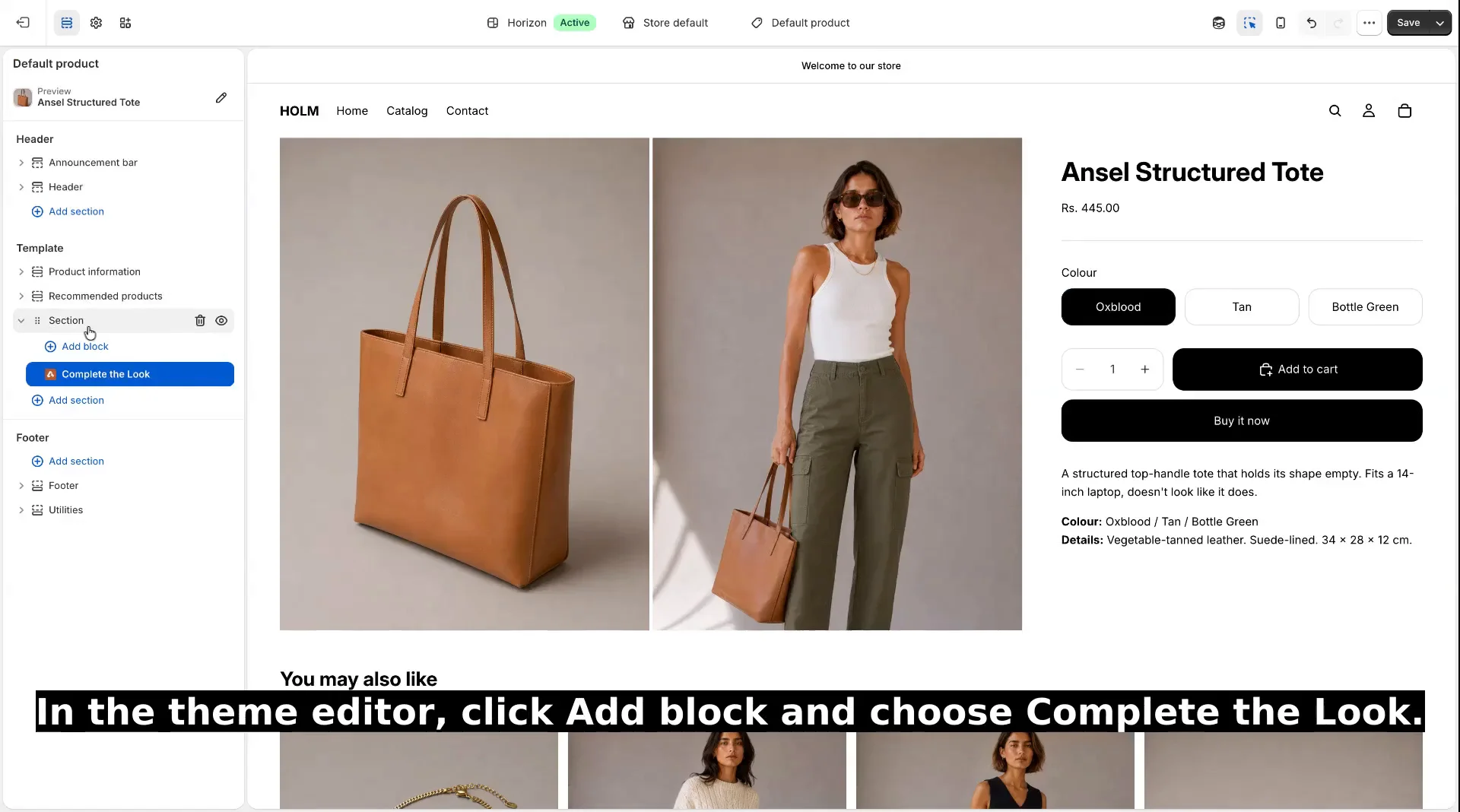
Wait for suggestions. Angadi studies your product photos and builds outfit ideas for you. For most stores the first looks are ready within a few minutes. Larger catalogs take a little longer.
Tip: Angadi learns from how you already style products in your photos. If your photoshoots show a top and trousers worn together, it treats that as a strong signal.
Approving looks
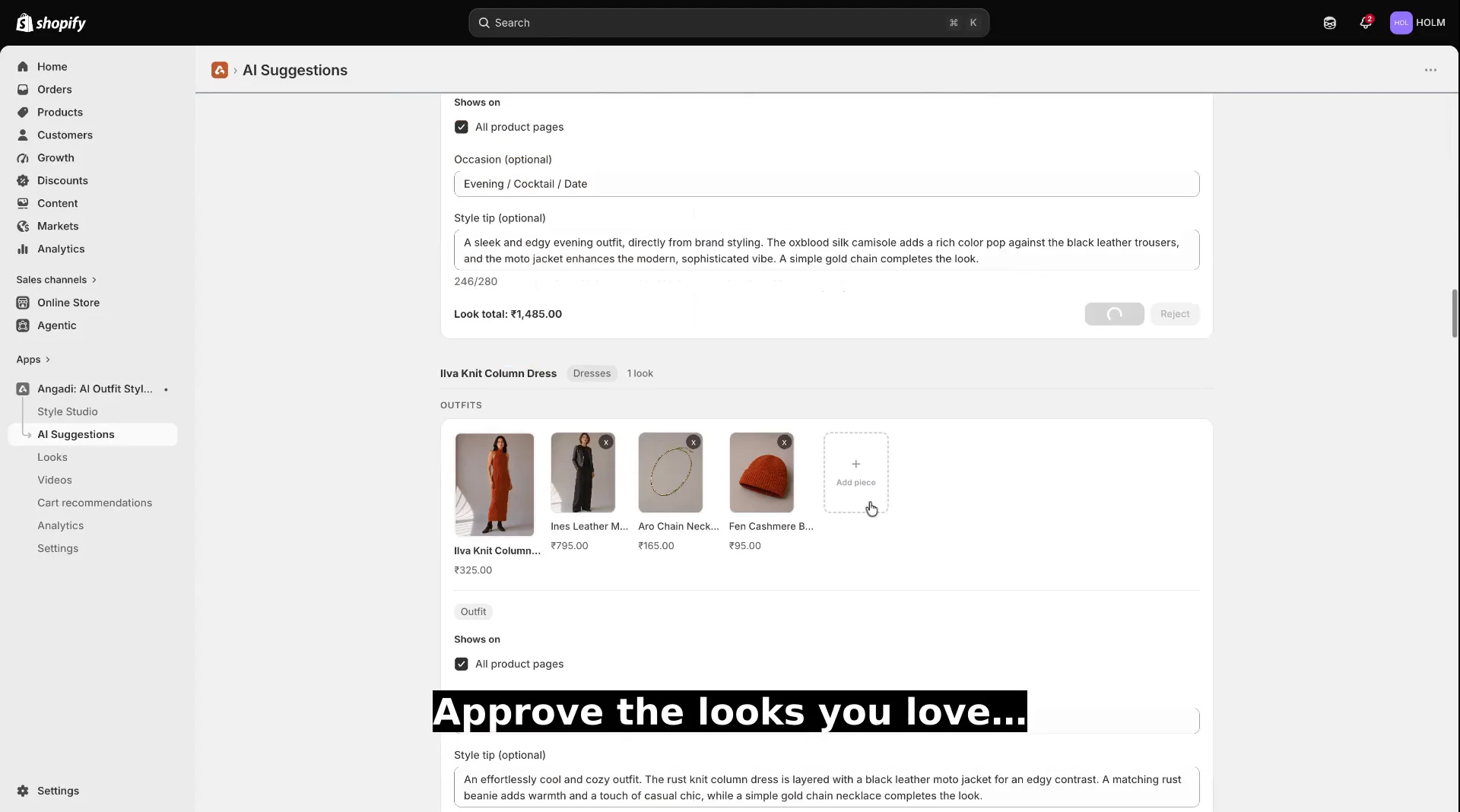
Open AI Suggestions in the app. You’ll see outfit ideas grouped by product.
- Approve a look to publish it to your storefront.
- Reject ones that don’t fit your brand.
- Approve all for a product if they all look good.
- Sort by demand to give your best-selling products looks first.
Approved looks usually appear on the storefront within about 15 seconds, and occasionally take up to an hour to refresh everywhere.
Building your own looks
Prefer to curate by hand? Open Style Studio:
Click products from your catalog to add them to a look.
The first piece you pick is the main product.
Save. Done — it’s live.
You can mix AI suggestions and your own hand-built looks freely.
Making it match your store
Open Settings → Widget styling:
- Edit the headings (“Complete the Look”, “Style it With”, cart heading).
- Adjust fonts, size, spacing, and colour to match your theme.
- Toggle what shows: occasion tags, style tips, prices, look total.
The widget already inherits your store’s fonts and colours automatically, so most stores need very little tuning.
Managing where looks appear
On the Looks page you can:
- Reorder looks for a product (which shows first).
- Pin your favourite look to the top for a product.
- Choose which product pages a look shows on.
Reward the whole look
Give shoppers a reason to buy the full outfit. Turn on Styled Look Saving in Settings and pick a discount (up to 50%). When a shopper buys the pieces of a look together, the discount applies automatically at checkout — and the widget shows the saving right on the look, so shoppers know it’s there.
Included, like everything else.
Cart drawer recommendations
Angadi shows a matching piece inside your cart drawer, so shoppers can add one more item before checkout. It’s on whenever the Angadi app embed is enabled in your theme.
By default the cart shows the look you’ve curated for whatever’s in the cart. Prefer to let your bestsellers fill that spot instead? Open Cart Recs in the app and switch the source — you’ll see a live preview of exactly what shoppers will get, and you can exclude any product you don’t want to feature.
Shop the Look & product videos
Both are built from things you already have. Shop the Look reads your own product photography: when a photo shows several of your pieces styled together, the pieces in it are shown right under Add to cart, ready to add. Product videos are clips you upload — or reels imported straight from Instagram — shown on the product pages of the pieces they feature. Here’s both on one product page, in 13 seconds:
Turn on Shop the Look from its page in the app — the looks it builds are listed there first, and you can edit or remove any of them, any time. Videos live on the Videos page: upload a clip or connect Instagram, tick the products in it, done. Both are included on every plan.
Revenue tracking
Want to see how much revenue is attributed to the widget? In Settings, turn on Revenue attribution. Angadi will ask permission to read orders, then start matching sales back to widget recommendations. You can turn it off any time.
Angadi uses a 24-hour attribution window — a sale counts only if it happens within a day of the shopper seeing a recommendation. Most tools stretch this to 30 days and take credit for purchases that would have happened anyway; the 24-hour window is deliberately tight, so the revenue you see is sales that happened soon after a shopper used a look, not purchases from weeks later. The dashboard still lets you report over 7, 30, or 90 days — that’s the range you’re viewing, not the window a sale has to fall inside. Why a tight window is the honest one →
Quick fixes
The widget isn't showing on my store.
Check that the Angadi app embed is enabled in your active theme (theme editor → App embeds). This is the on/off switch, and it's the most common reason a store looks unchanged.
I changed a setting but the store still looks the same.
Give it about 15 seconds and refresh. Most changes appear that fast; now and then a page can take up to an hour to pick them up.
A recommendation shows a product that's out of stock.
Out-of-stock pieces are hidden automatically. If one lingers, it usually clears within a few minutes, and can take up to an hour on a cached page.
A look has a piece I don't want.
Edit or unpublish it from the Looks page, or reject the suggestion in AI Suggestions.
Need a hand?
Email hello@angadilabs.com and we’ll help, including custom widget styling.
Ready to see it on your own catalog? Start your free trial →